User Management
User Management → Users
-
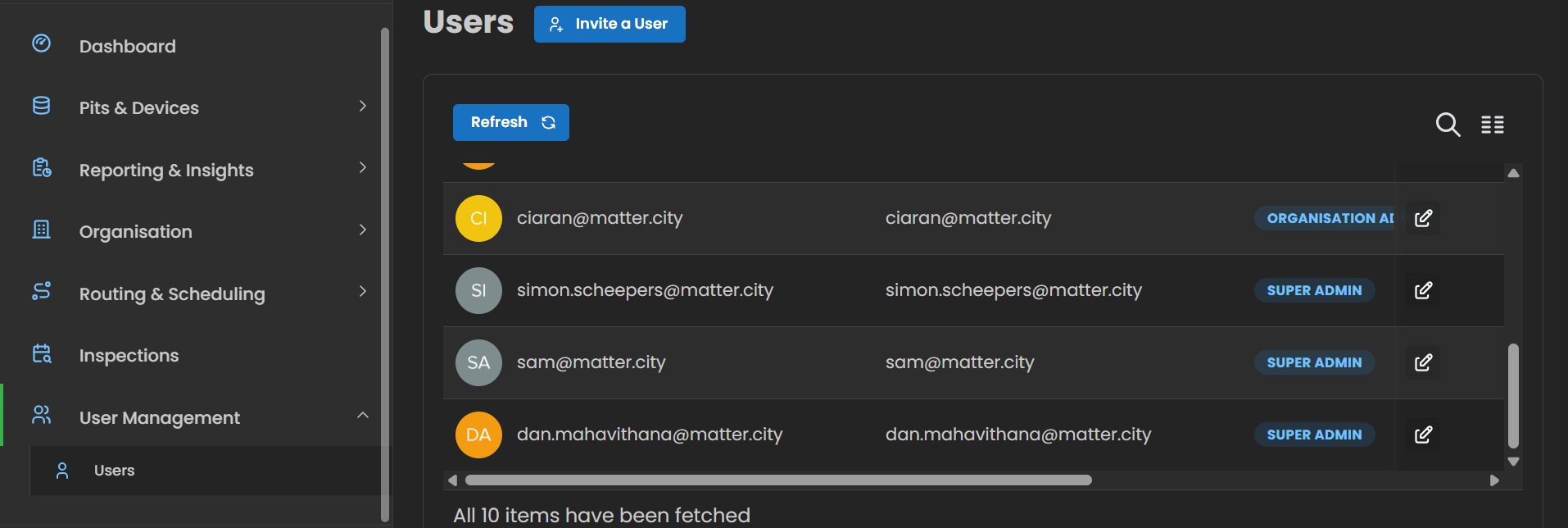
Invite a User (Top Button) – Use this to add new users by entering their details and assigning roles.
-
Refresh (Blue Button) – Updates the user list to ensure you see the latest changes.
-
Search & View Toggle (Top Right) –
- Magnifying Glass Icon → Search for a user by name or email.
User List
Each row represents one user and includes the following:
-
User Initials Icon → A coloured circle showing the initials of the user.
-
Email Address → Displayed in two columns for quick reference.
-
Role Tag → Shows assigned role (e.g., Organisation Admin, Super Admin).
-
Edit Icon (Pencil) → Open settings to change user details or permissions.